
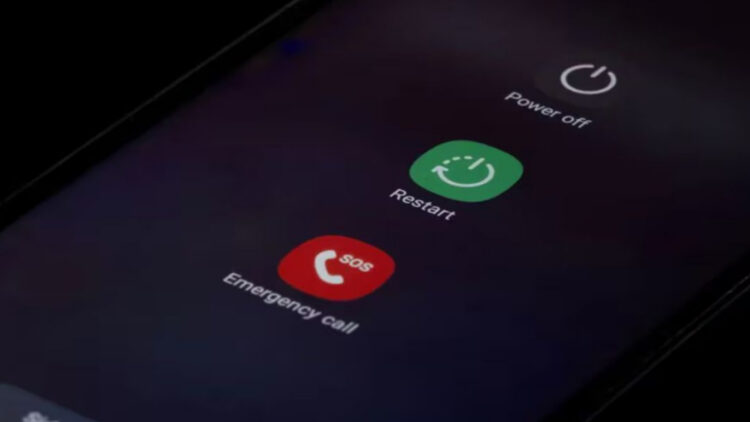
We are sure it’s happened to you at least, once. You go to turn off or restart your phone… and the button doesn’t respond. What? Why??!! Or worse (which has happened to us too), the button stops working right when you need it the most. But, do not panic, friend. If you have Android, this article is for you, Android smartphones have built-in ways to restart the phone without touching a single physical button, yassss! You don’t need to install anything strange or mess with the system.
From the system settings
The easiest option is inside the Settings menu. Google has been adding shortcuts to basic functions for a while, and one of them is turning off or restarting the device from the system.
Do this:
- Unlock the phone and open Settings.
- Use the search bar and type “restart” or “power off.”
- Tap on the option that appears.
- Tap Restart and confirm.
In newer versions of Android (12, 13 and up) it’s visible. In custom layers (Samsung, Xiaomi, Huawei…) it may be in another section, such as “Accessibility” or “Advanced features”. If you can’t find it, the internal search takes you right there.
With the accessibility menu
Something faster or if the button is completely dead, the trick is activating the accessibility menu (a floating panel that appears on the screen and gives you direct access to key functions).
To activate it:
- Go to Settings.
- Enter Accessibility.
- Find Accessibility menu and activate it.
From then on you’ll see a small floating icon on the screen. When you tap it, several options appear, including Power off or Restart. With one tap, the phone restarts as if you’d pressed the physical button. This panel stays active, so you can use it anytime without depending on the hardware, and you can even add other functions like screenshots.
If the phone is completely frozen…
If the screen doesn’t respond and the phone is totally locked, there’s not much you can do, you have to let the battery run out. Once it turns off by itself, when you plug it into the charger, most Android devices turn on automatically.
It’s not the fastest method, but it saves you from opening the phone or taking it to a repair shop if the only problem is the button.
Useful even if the button works
Even if the button works fine, knowing these methods can save you time. For example, if you’re on a call, using a thick case, or you simply don’t want to keep pressing buttons over and over. On many new phones, the power button is also used to activate the voice assistant, and sometimes restarting that way is less intuitive. With these shortcuts, you’re done in seconds.
What if I have an iPhone?
Of course, for iOS users we also have tricks, here they are (although it will depend on which model you have):
- If the iPhone doesn’t have a home button, press and hold the side button + volume until the slider appears, slide to power off and turn it back on with the side button.
- If the iPhone has a home button, press and hold the side or top button, slide to power off.
- If you need to force a restart because the screen is frozen:
- iPhone 8 or later: volume up + volume down.
- iPhone 7: volume down + side together.
- iPhone 6s or earlier: home + side/top together.
- Release when you see the Apple logo.
A broken power button doesn’t mean the phone is unusable, even though it can happen at the worst possible time, right?